 Capture
Start here
ClinicPro Capture in 1 minute
ClinicPro puts photos, documents and emails straight into the patient's record in Medtech. No camera roll, no scanning, no saving attachments.
- 1. You open ClinicProFrom the patient's record in Evolution.
- 2. You add somethingA photo, a patient's file, or a forwarded email.
- 3. It lands in MedtechIn the patient's inbox, dated and named.
What do you want to do?
First time? How to open ClinicPro2 steps
- 1
Open the patient's record in Evolution as you normally would.
- 2
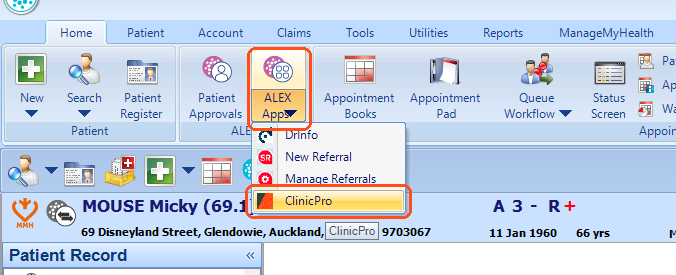
Click Home › ALEX Apps › ClinicPro.
Start here
Your ClinicPro page
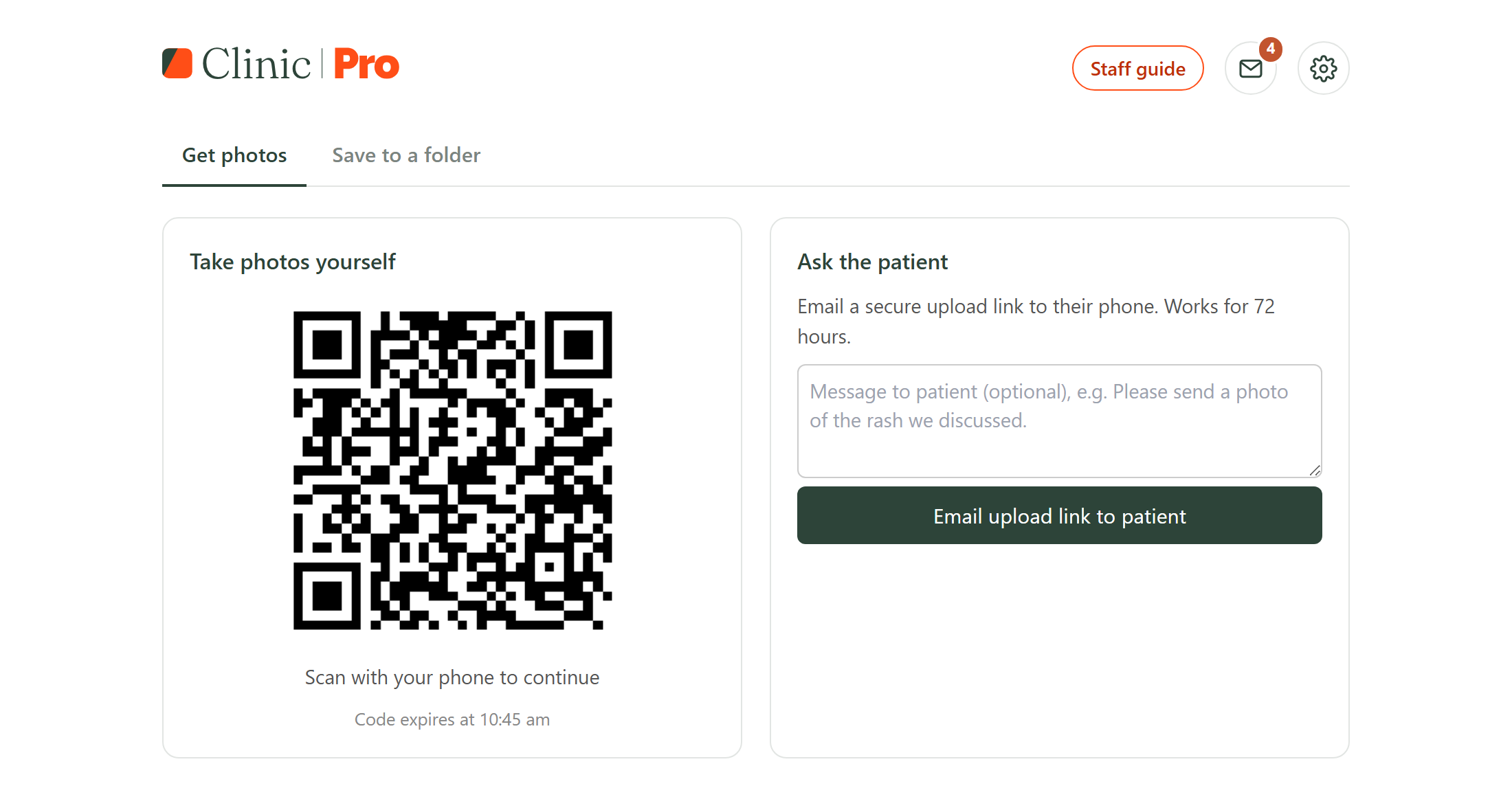
This is what opens when you click ClinicPro. Tap a number to see what each part does.
Every day
Take photos with your phone
With the patient in front of you. Any phone with a camera. No app, no login.
- 1Open the patient in Evolution, then click ClinicPro.
- 2Scan the QR code with your phone camera and tap the link.
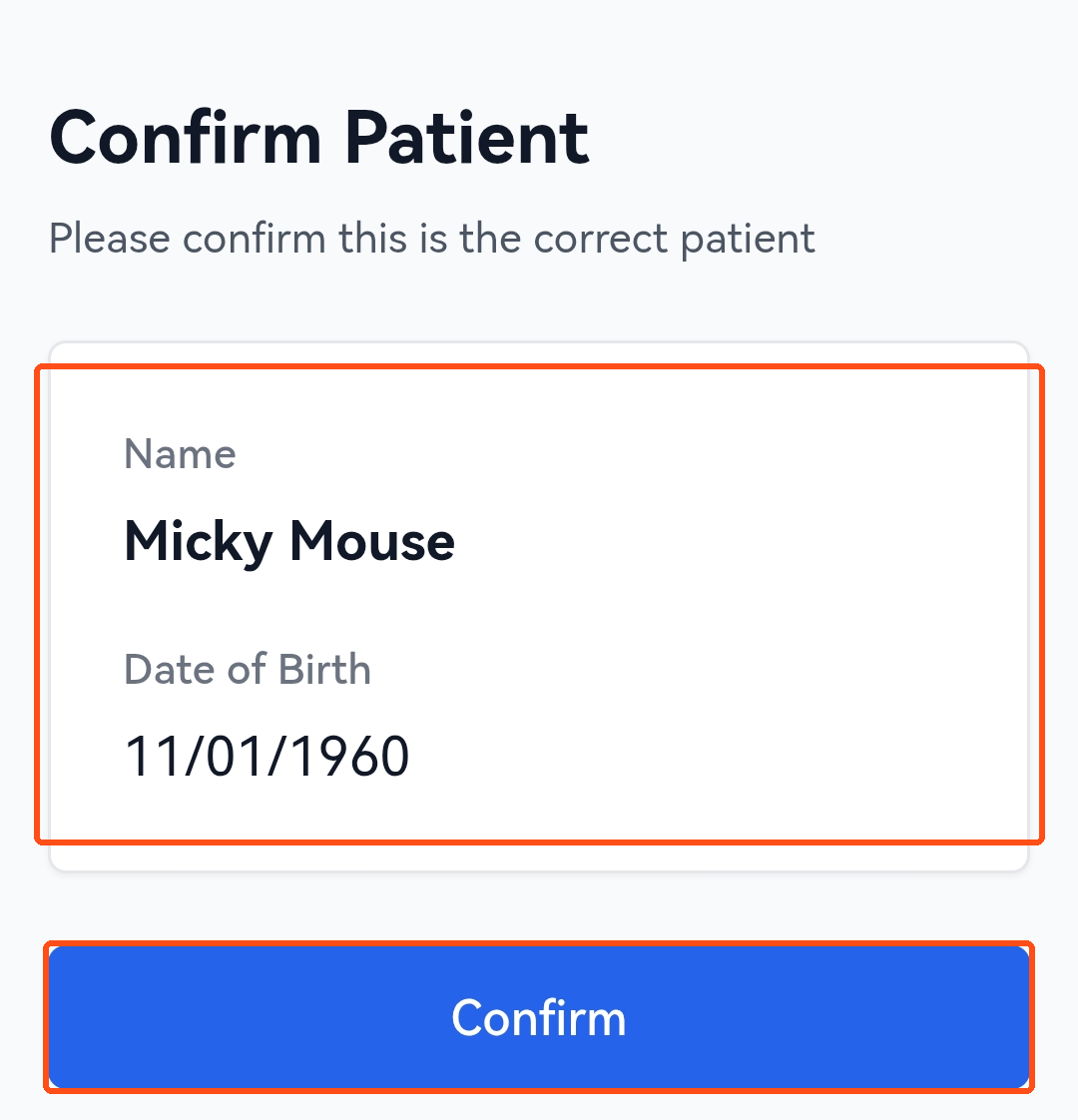
- 3Check the name and date of birth, then tap Confirm.
- 4Take the photo, give it a name, tap Upload.
Show every step, with pictures13 steps
- 1
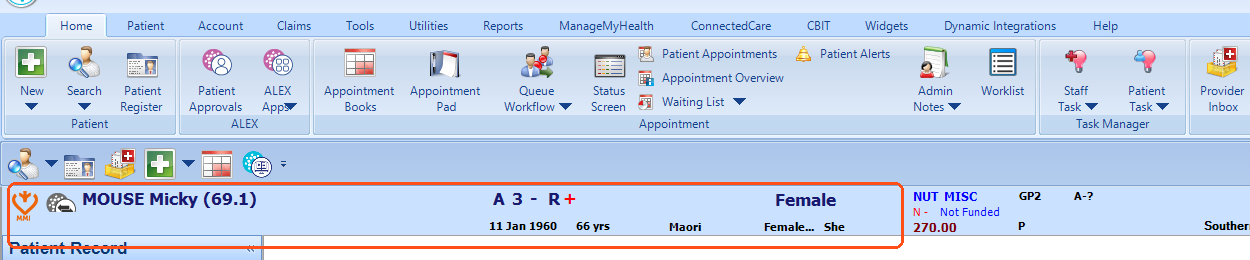
Open the patient's record in Evolution.
- 2
Click Home › ALEX Apps › ClinicPro.
- 3
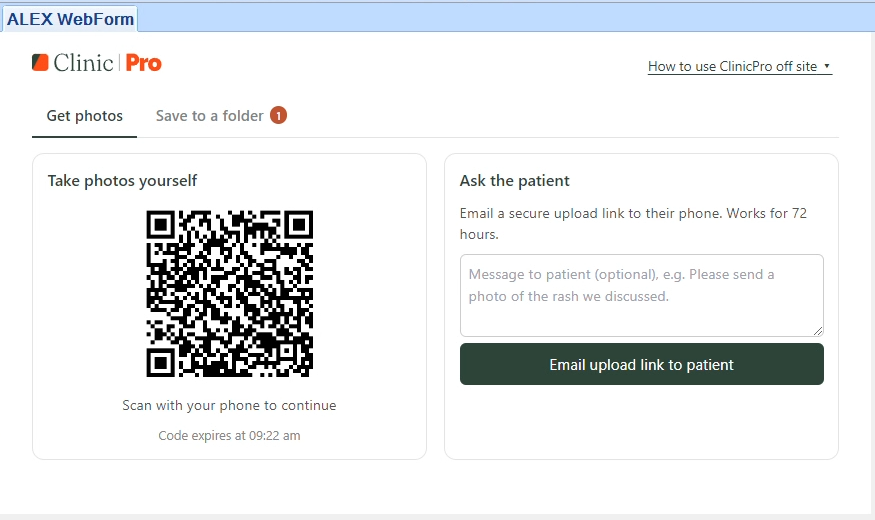
ClinicPro opens on Get photos, with the QR code on the left.
- 4
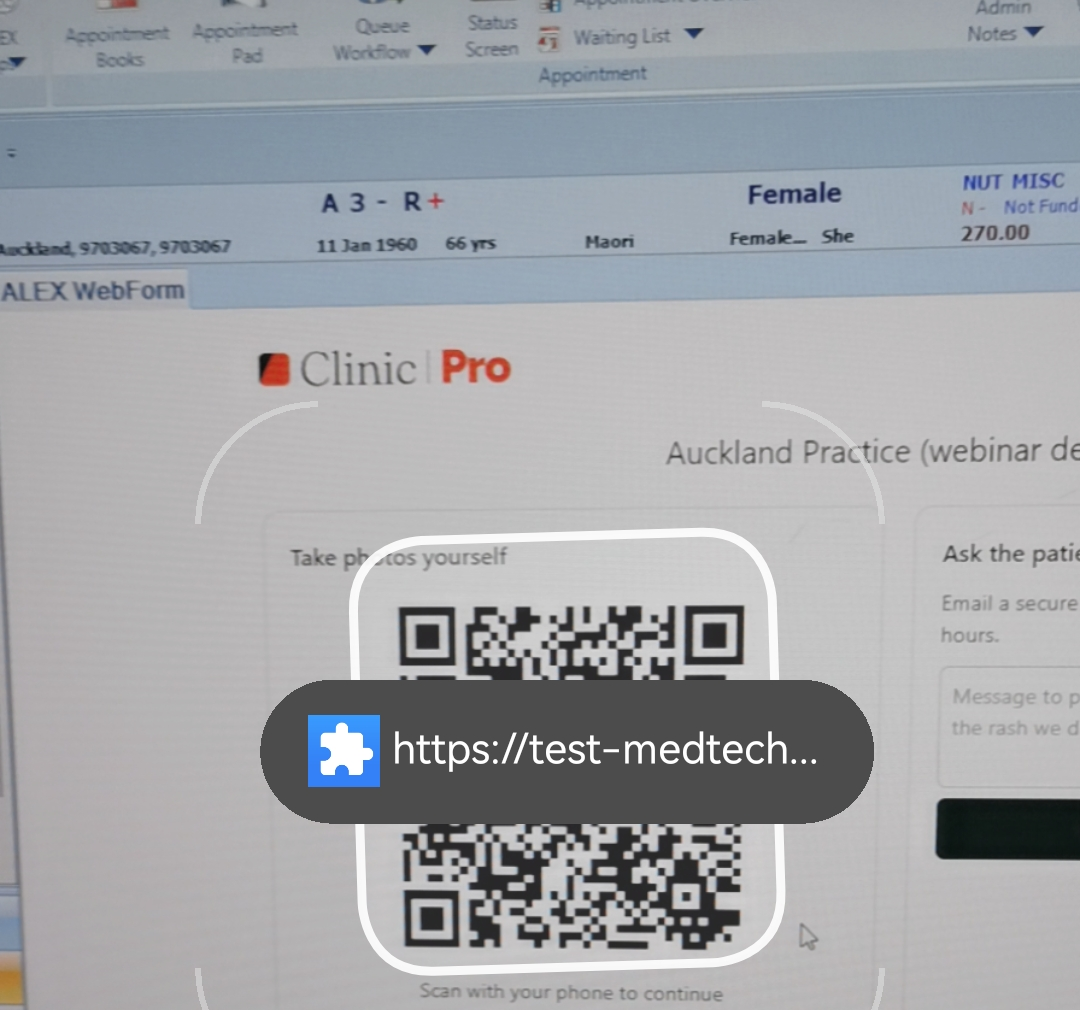
Point your phone camera (or Google Lens) at the code and tap the link.
- 5
Check the name and date of birth, then tap Confirm.
- 6
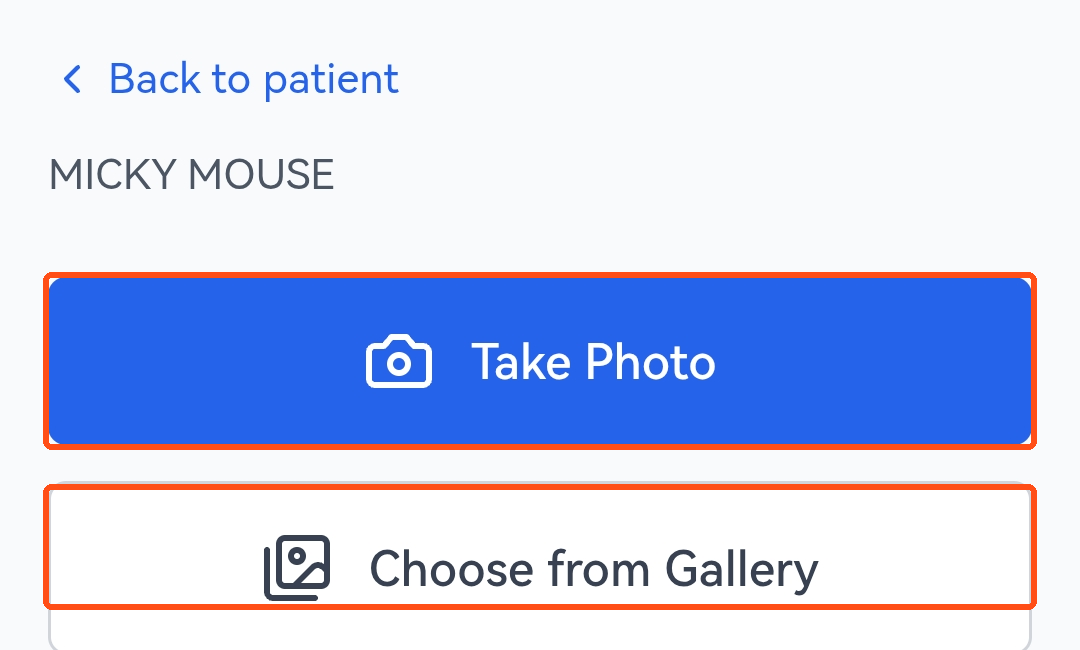
Tap Take Photo, or Choose from Gallery if you already took it.
- 7
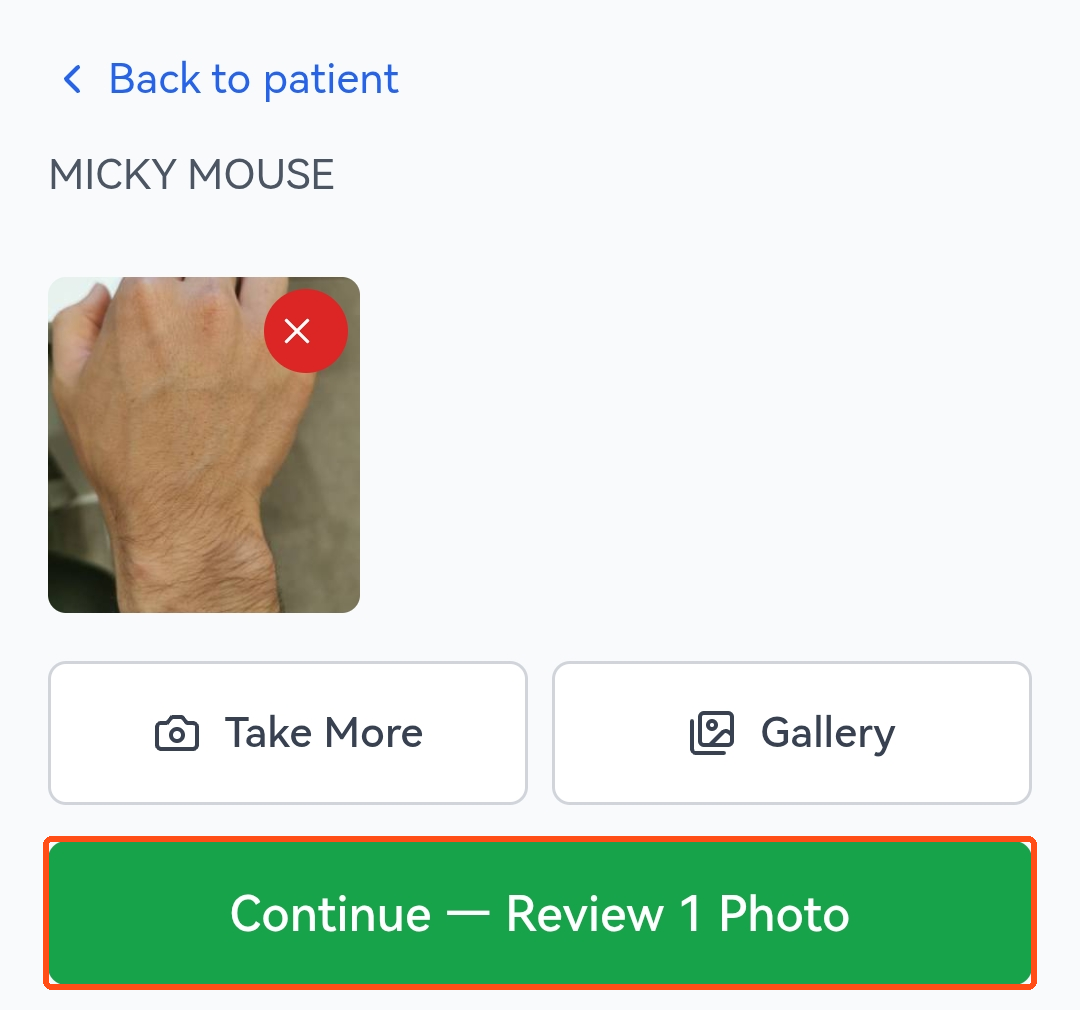
Take more with Take More, then tap Continue.
- 8
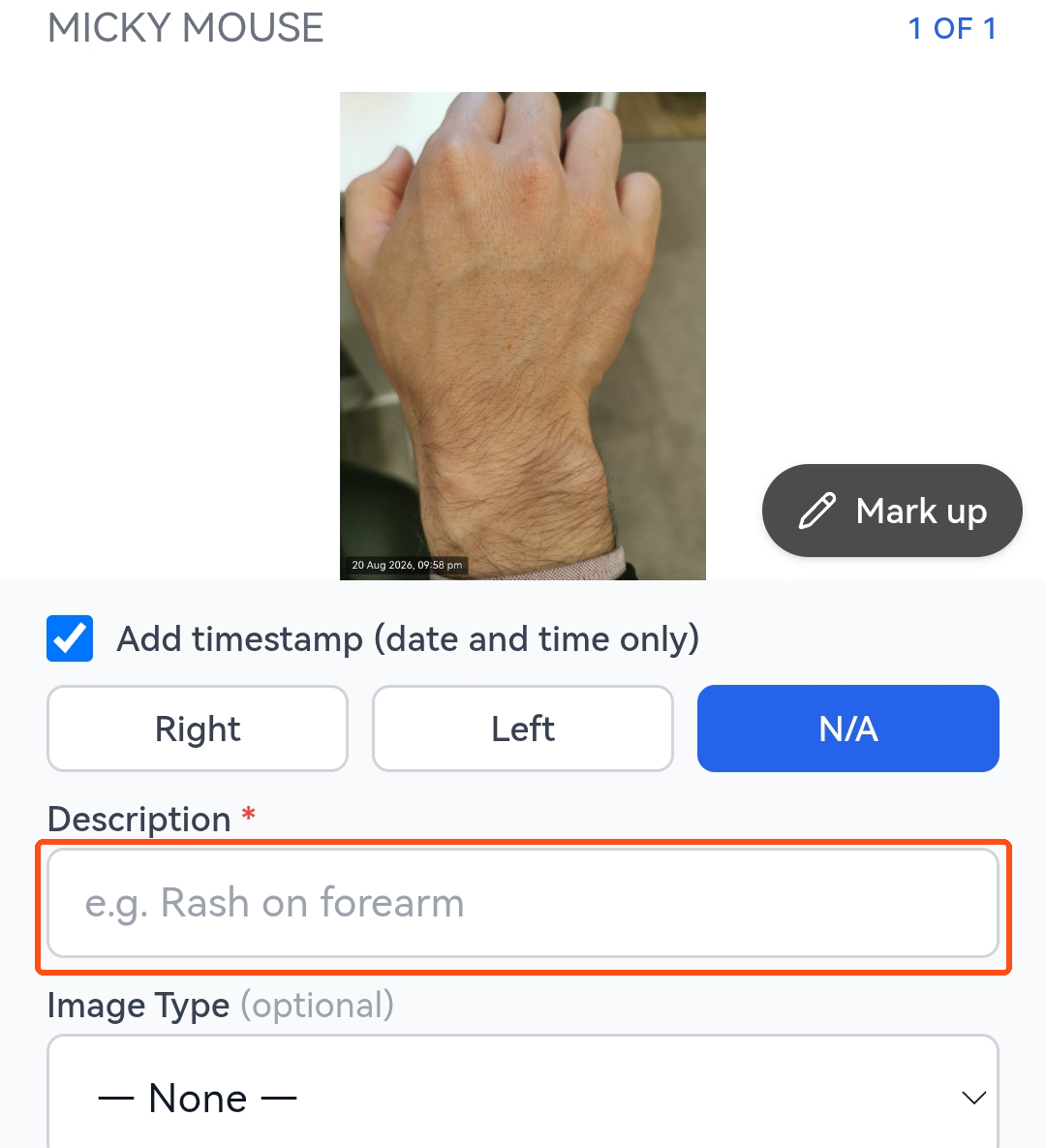
Name the image, for example Hand lesion. The only thing you must fill in.
- 9
OptionalMark up: draw, add an arrow, or circle the area.
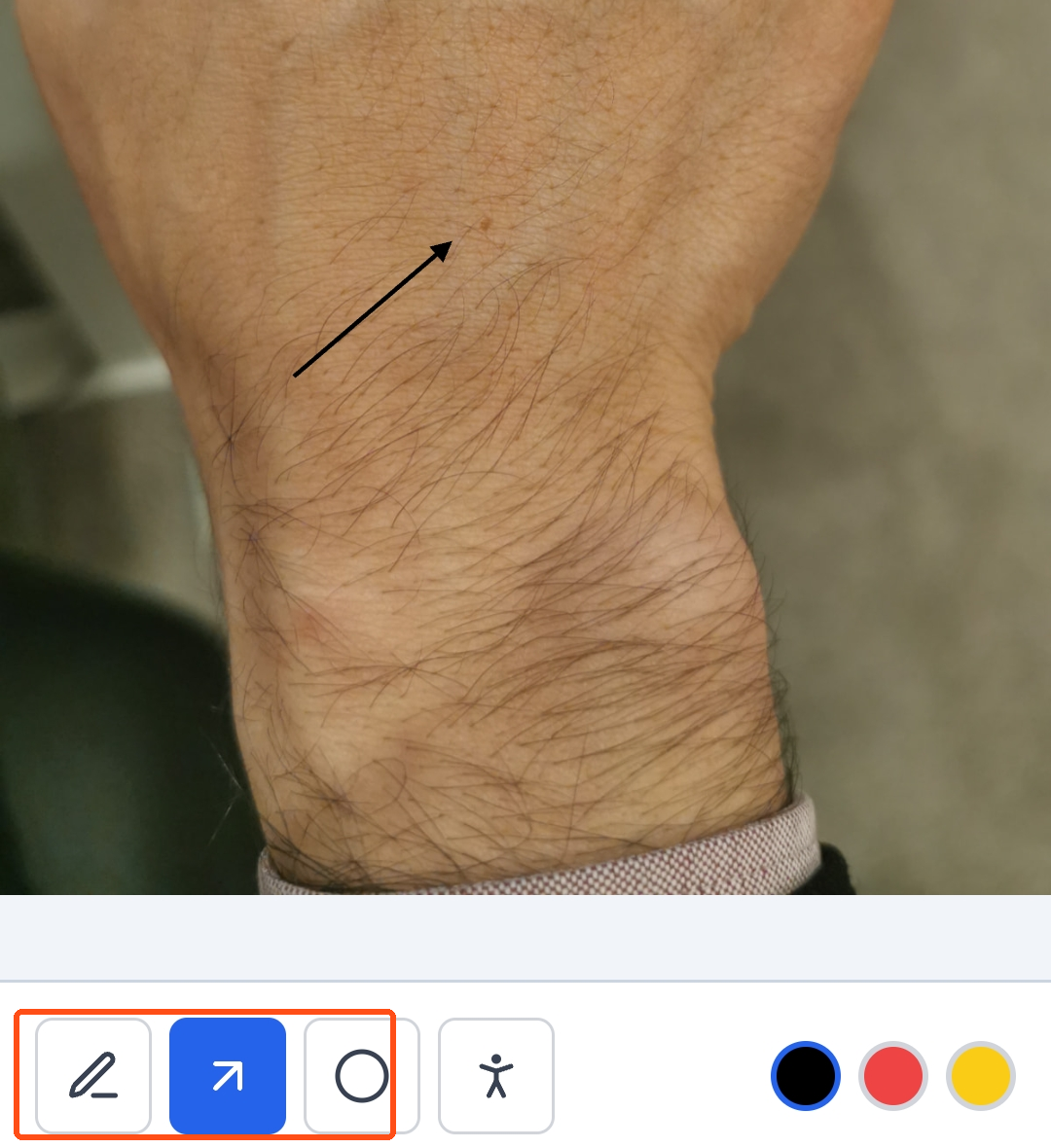
- 10
OptionalBody map: tap the figure, tap the spot, Confirm pin.
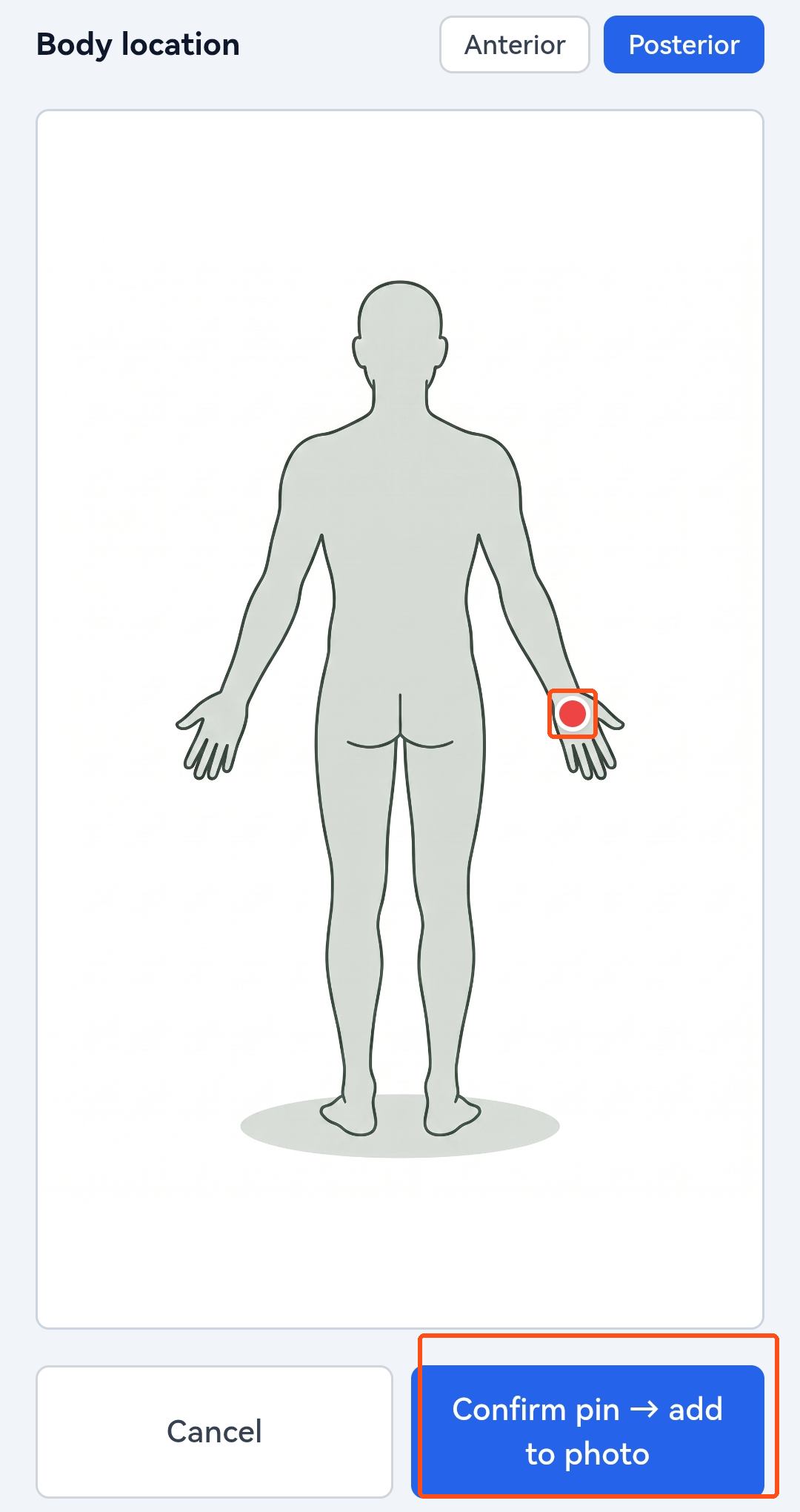
- 11
OptionalDrag the body map inset so it doesn't cover anything.
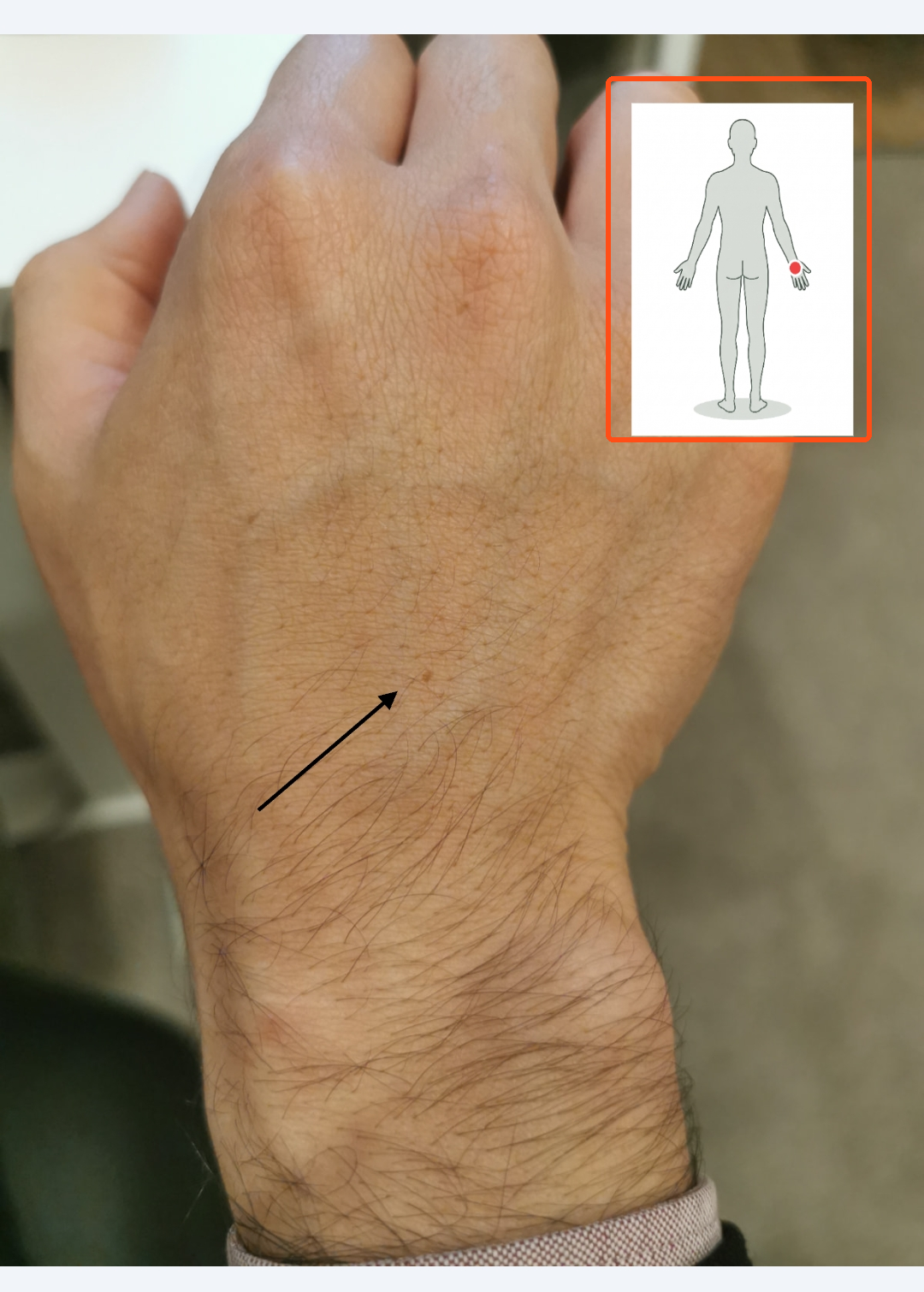
- 12
OptionalImage type and side, such as Close-up, Left.
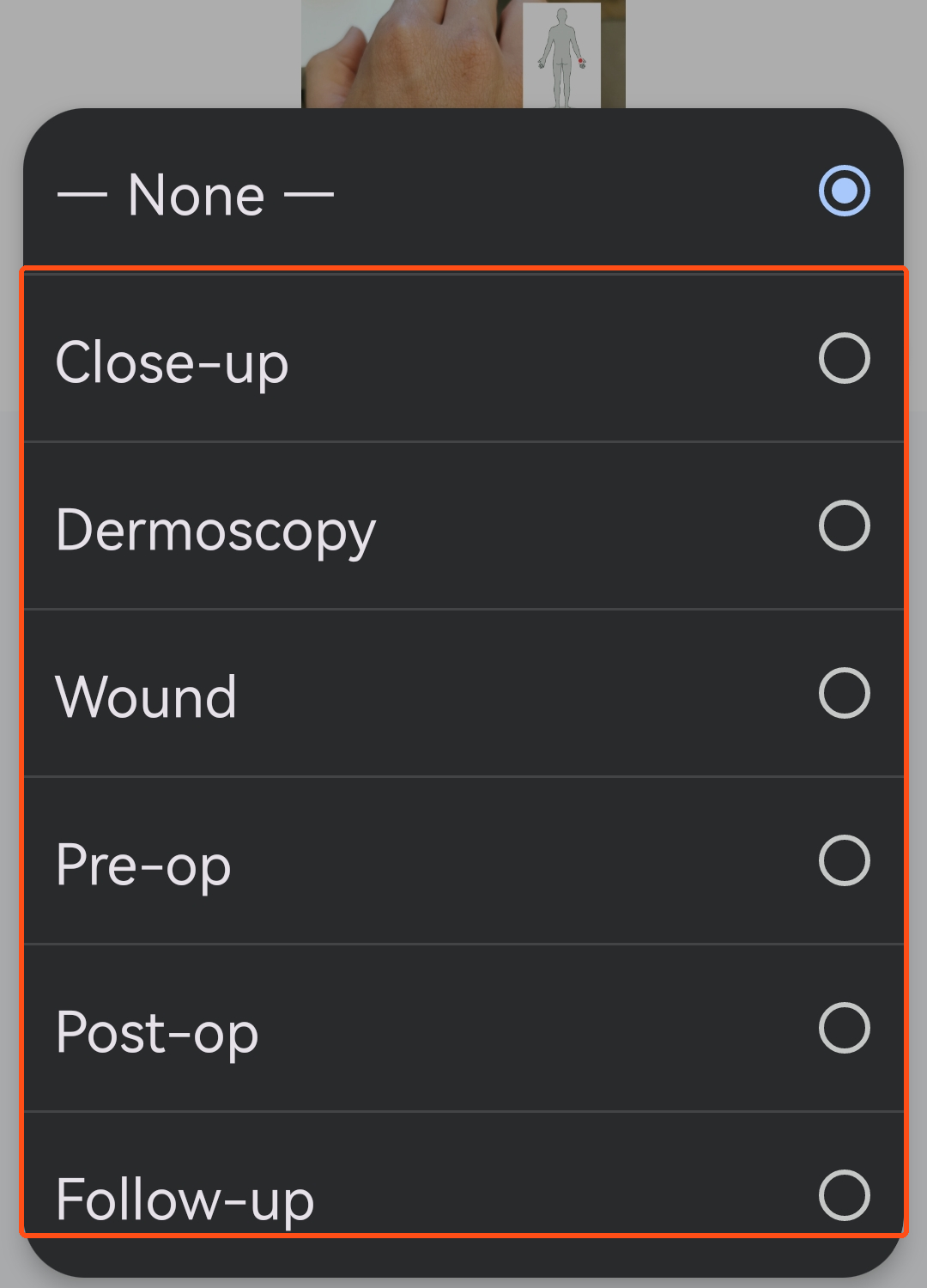
- 13
Tap Upload. It's in the patient's Medtech inbox. Scan next patient to carry on.
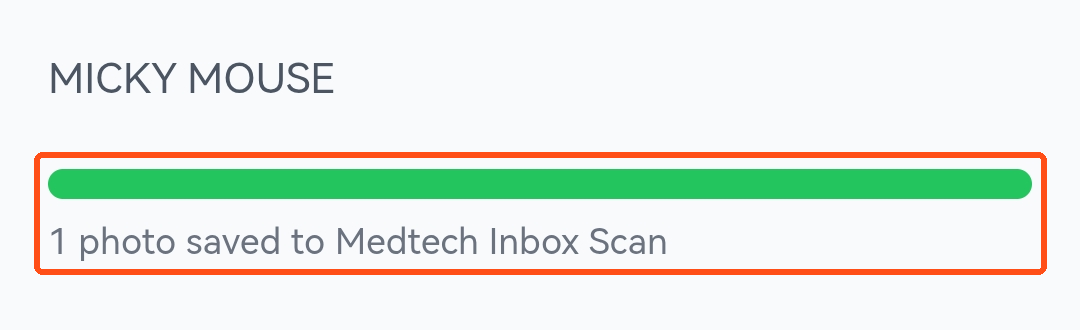
Good to know
- Photos are resized for Medtech automatically. Nothing to crop or compress.
- The photo goes to the patient's record, not your camera roll.
- The QR code expires after a while. Close ClinicPro and open it again for a new one.
When you need something from the patient
Get files from the patient
Email the patient a secure link. They upload photos or PDFs from their own phone or computer, and it goes straight into their record.
- 1Open the patient, click ClinicPro.
- 2Under Ask the patient, type what you need, for example "Please send a photo of the rash".
- 3Click Email upload link to patient. That's all.
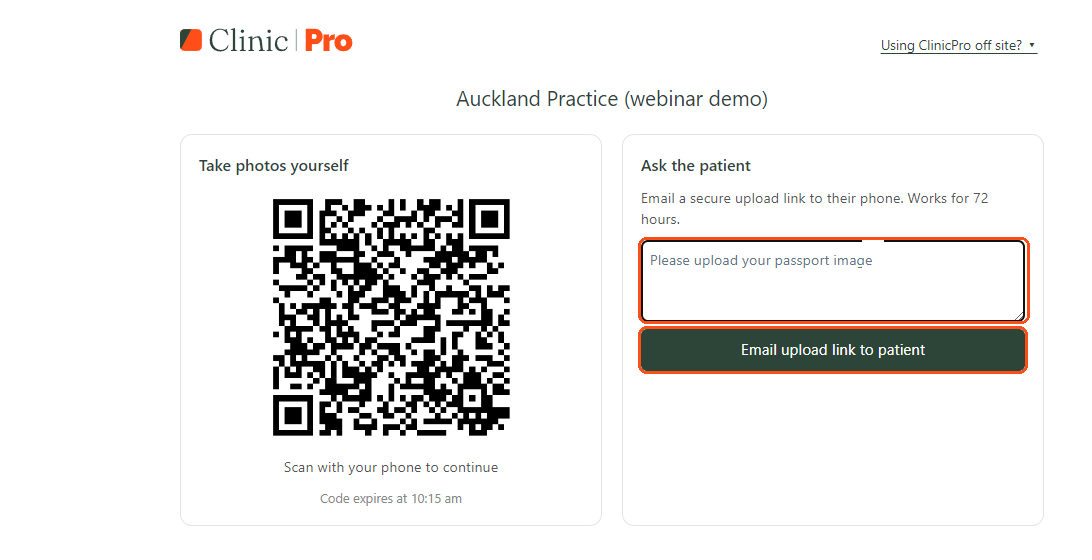
What the patient sees4 pictures
- 1
An email from no-reply@clinicpro.co.nz with your practice name and one button.
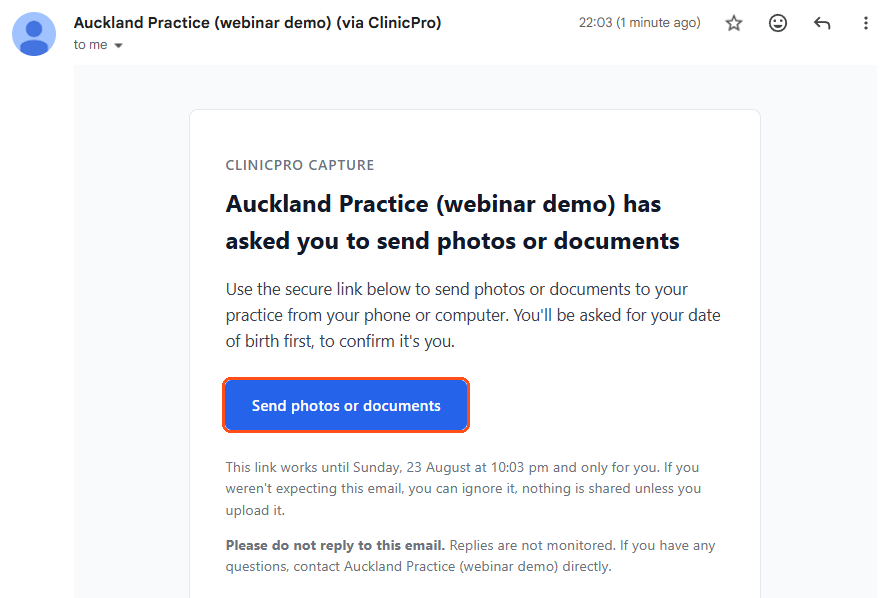
- 2
They confirm their date of birth first, so the link is no use to anyone else.
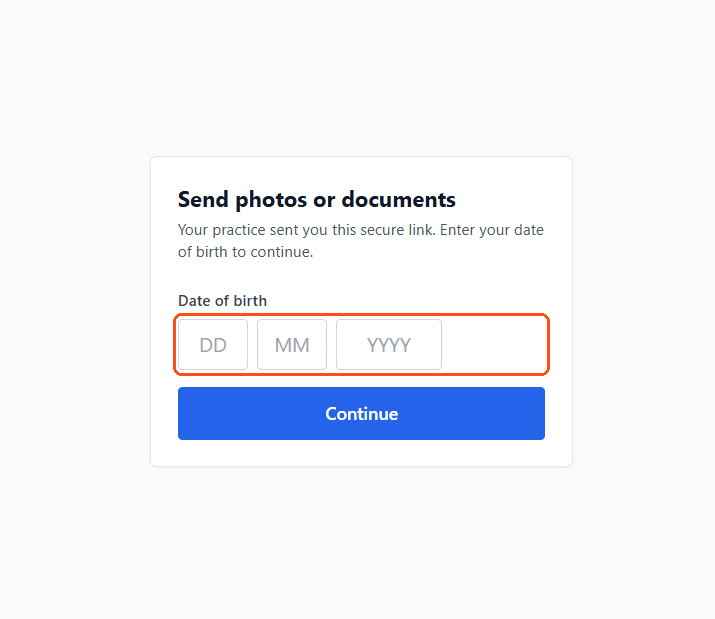
- 3
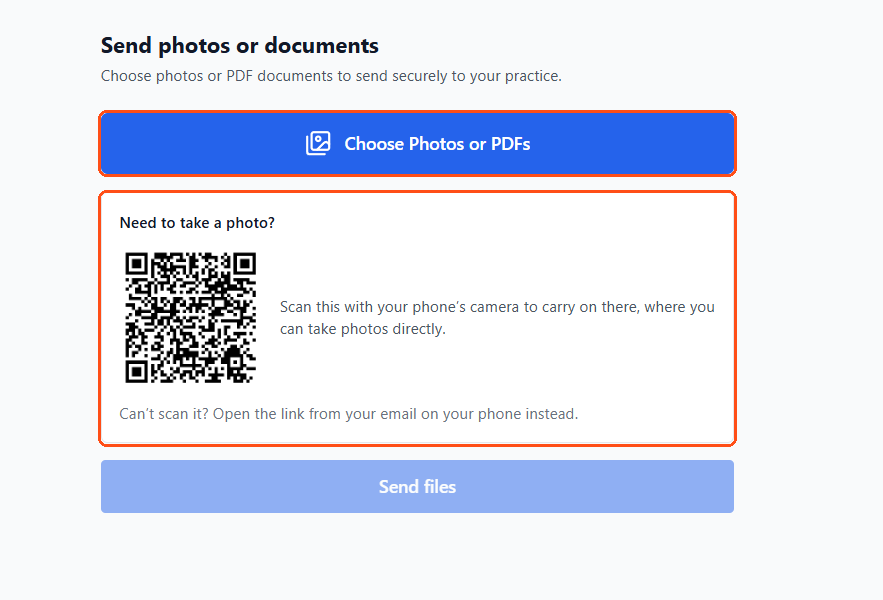
They choose photos or PDFs and add a short note.
- 4
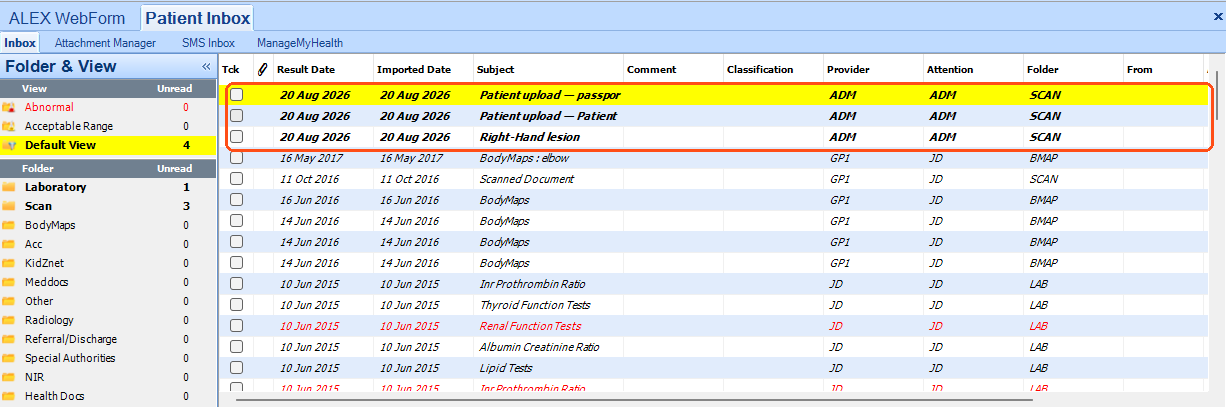
It arrives in your provider inbox in Medtech, filed under SCAN.
If the link stops working
It works for 72 hours and closes an hour after their last upload. Send a new one from the same place.
New
Import an email
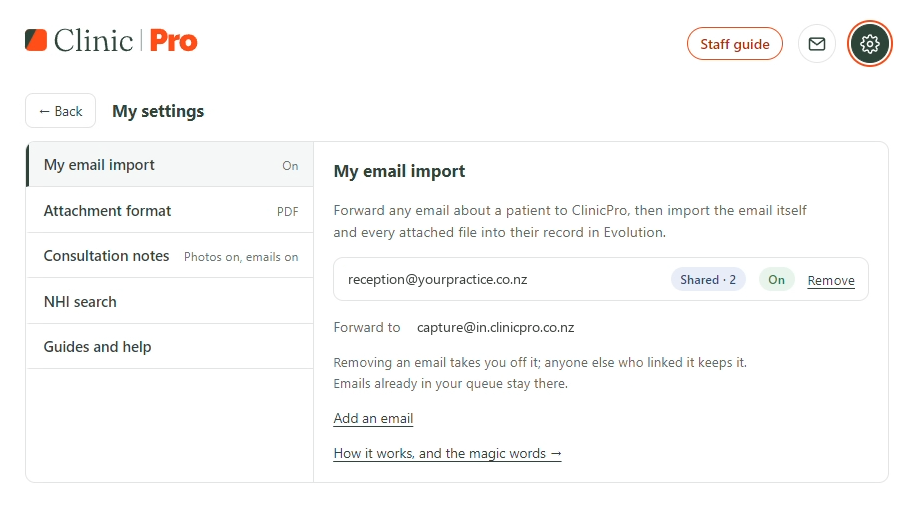
Forward any email about a patient, with or without attachments, then import the email text and every attached file into their record.
Every time
- 1Forward the email to capture@in.clinicpro.co.nz (or the address in your activation email).
- 2Type the patient's NHI on the first line.
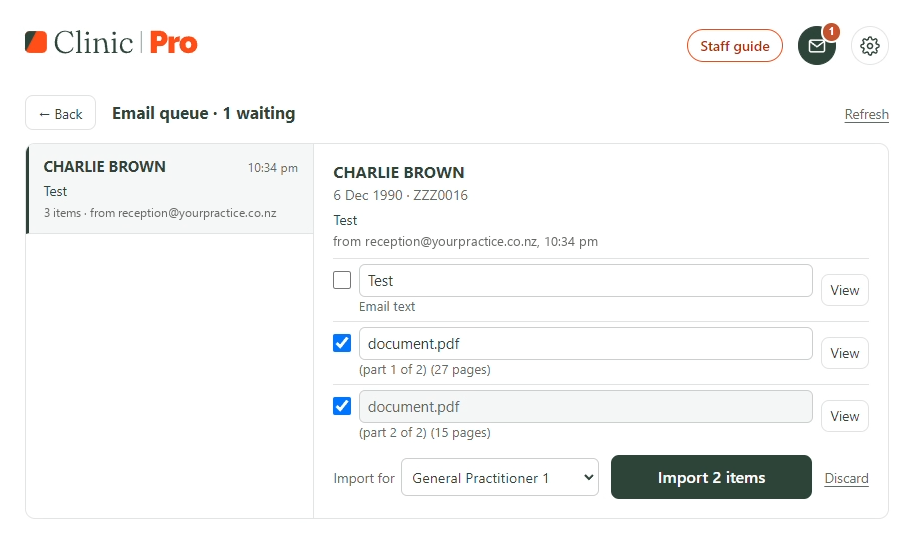
- 3In ClinicPro, click the envelope. Check the patient and Import for, tick what to import, click Import.
Set it up: practice manager, once4 steps
- 1
Go to medtech.clinicpro.co.nz/capture/dashboard and sign in.
- 2
Open the Email import tab.
- 3
Under Practice email domains staff may link, type your email domain and click Save. Your domain is the part after the @ in your practice email: jane@yourpractice.co.nz becomes yourpractice.co.nz. For security, ClinicPro only accepts forwards from these addresses.
- 4
If the tab shows Needs your confirmation after someone links their email, choose which Evolution login it belongs to and click Confirm.
Set it up: each person, once5 steps
- 1
Save capture@in.clinicpro.co.nz as a contact (or the address in your activation email). It's where you forward patient emails.
- 2
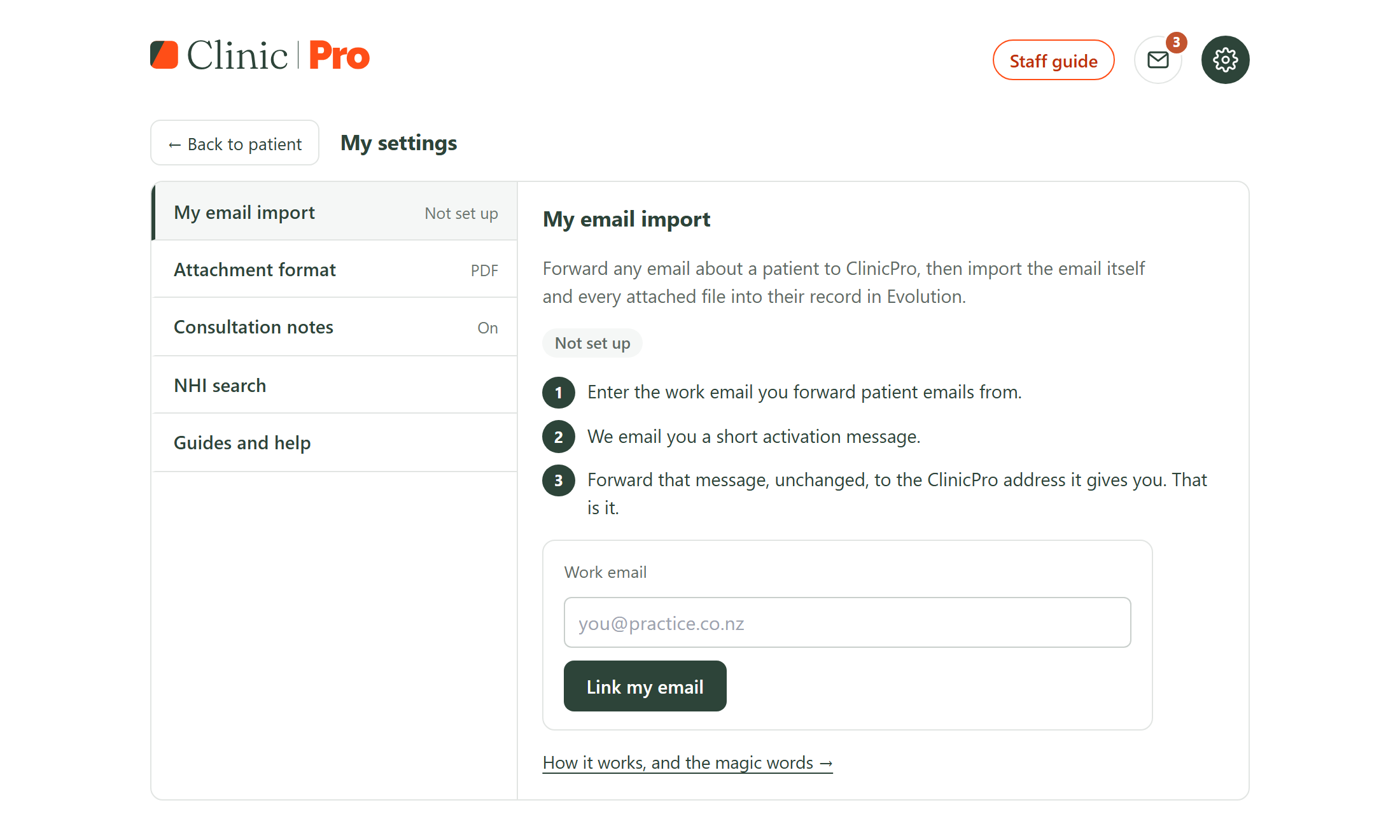
In Evolution, click the ClinicPro icon (no patient needed), then the cog, then My email import.
- 3
Type your work email and click Link my email.
- 4
Open that inbox. The email from ClinicPro names the Evolution login it links to. Forward it, unchanged, to the address it gives. Not you? Don't forward it: link from your own Evolution login instead. If a colleague has already linked the same email, you join straight away and there is nothing to forward.
- 5
Done. My email import shows On.
Shortcuts: choose what gets tickedoptional
Type these after the NHI, on the same line.
| ZZZ0016 "Cardiology letter" | Renames the email subject |
| ZZZ0016 for: Dr Lee | Imports for someone other than the patient's GP (keep the colon). Also in "Import for" next to Import |
| ZZZ0016 message | Ticks only the email text |
| ZZZ0016 all | Ticks the email text and every attachment |
| ZZZ0016 all for: Dr Lee "Cardiology letter" | Combine them in one line |
| help | On its own: we email you this guide |
No shortcut? Attachments are ticked for you, or the email text if there are none. You can change the ticks before importing. The NHI can also go anywhere in the subject or email body.
Good to know
- Import for starts on the patient's GP in Medtech. If Medtech has no current GP for the patient, choose who it is for before you import.
- Sharing an inbox, such as enquiries@? Each person links it from their own Evolution login. Everyone sees the same queue. When one person imports an email it disappears for the others, and Recently done shows who imported it.
- Sharing an Evolution login? Each person links their own email. Everyone on that login sees the one email list, with who forwarded each email.
- Each import adds a one-line note to the patient's consultation record, under the name of whoever imports it. To turn it off, click the cog, then Consultation notes.
- Attachments keep their file name. The email text is named after its subject line. You can rename any of them in the queue before you import.
- Word files become PDFs that Evolution can open.
- iPhone photos in HEIC format can't be imported yet. Send them as JPEG.
- Anything not imported is deleted after 24 hours.
- Evolution didn't say who you are (for example a reception login)? Your practice manager confirms which login your email belongs to. Nothing can be imported until they do.
Away from the practice
NHI search
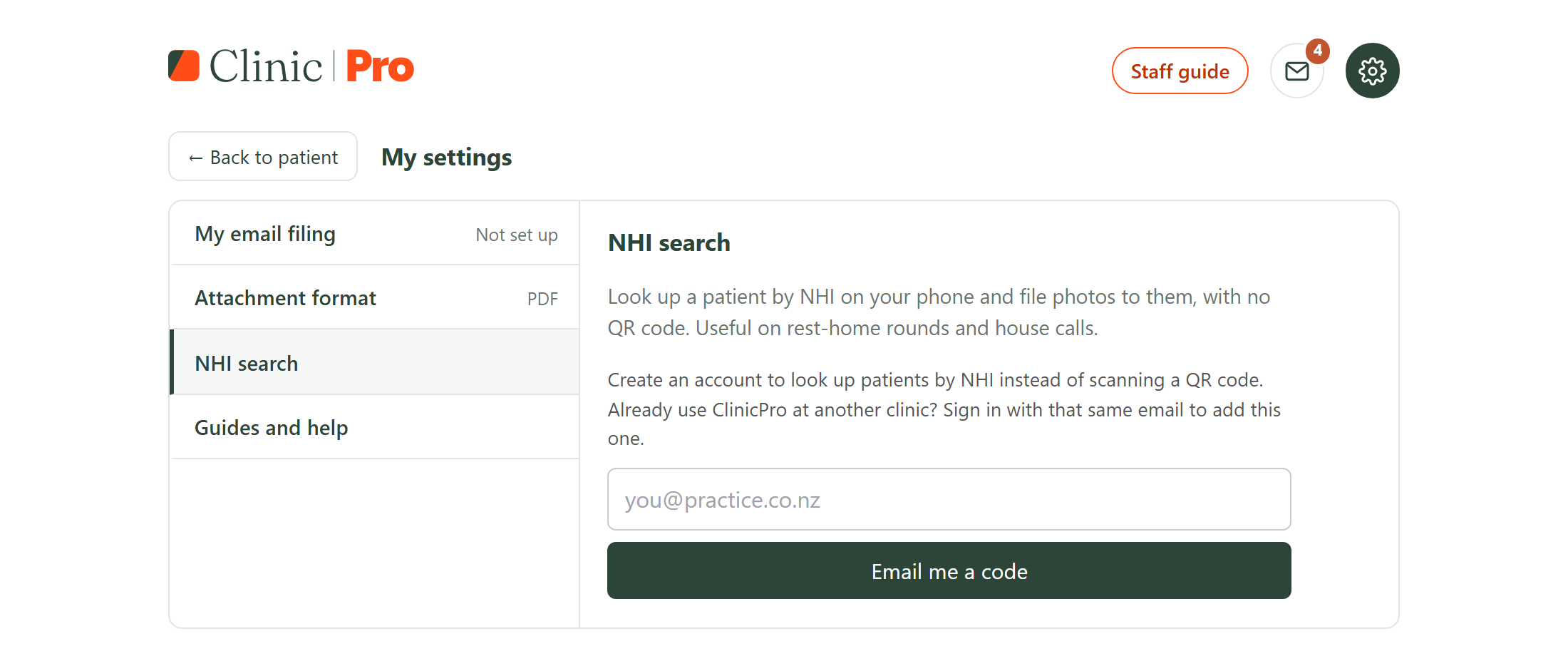
Find a patient by NHI on your phone and take photos for them. For rest homes and home visits, where there is no QR code.
- 1At the practice: ClinicPro, cog, NHI search. Enter your work email and the code we send.
- 2On your phone, go to medtech.clinicpro.co.nz and sign in with the same email.
- 3Type the NHI, check the name, take the photos.
Only if your practice has it
Save photos to a folder
For a photo that also has to go somewhere outside Medtech, like an immigration upload or another referral system. It still goes into the patient's record as normal.
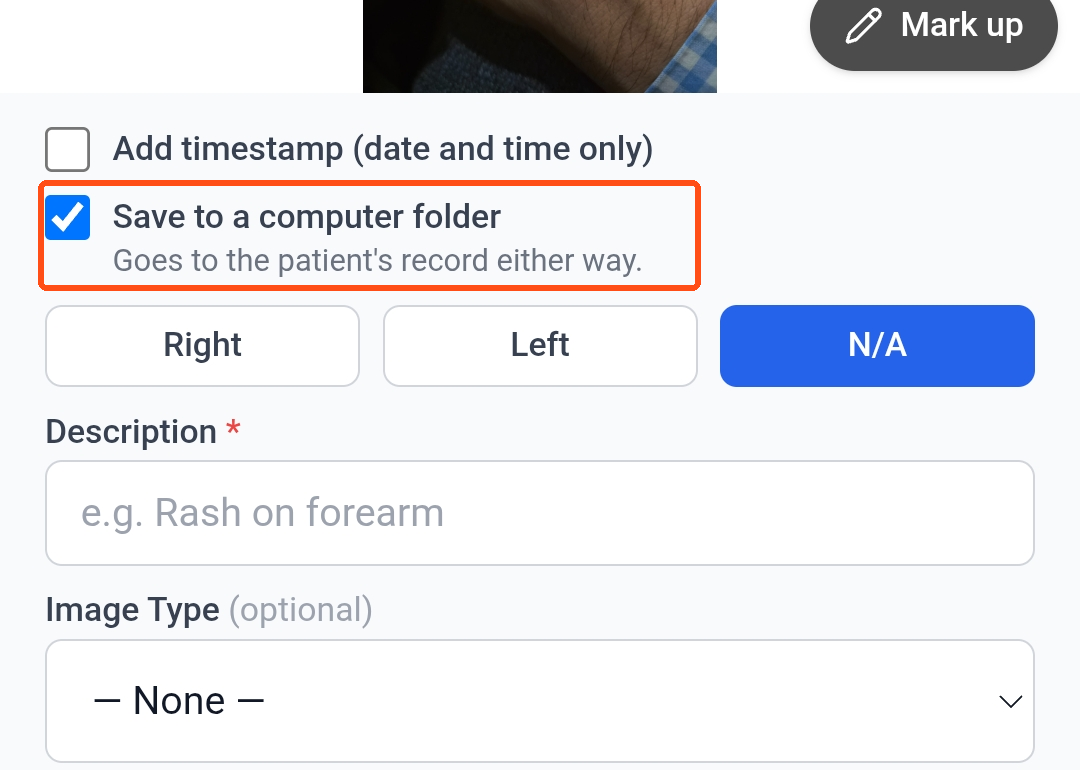
- 1On your phone, tick Save to a computer folder before you upload.
- 2In ClinicPro, open the Save to a folder tab.
- 3Drag a photo into a folder, or click Copy link and paste it into Chrome or Edge.
Show every step, with pictures4 steps
- 1
On the phone's naming screen, tick Save to a computer folder, then upload.
- 2
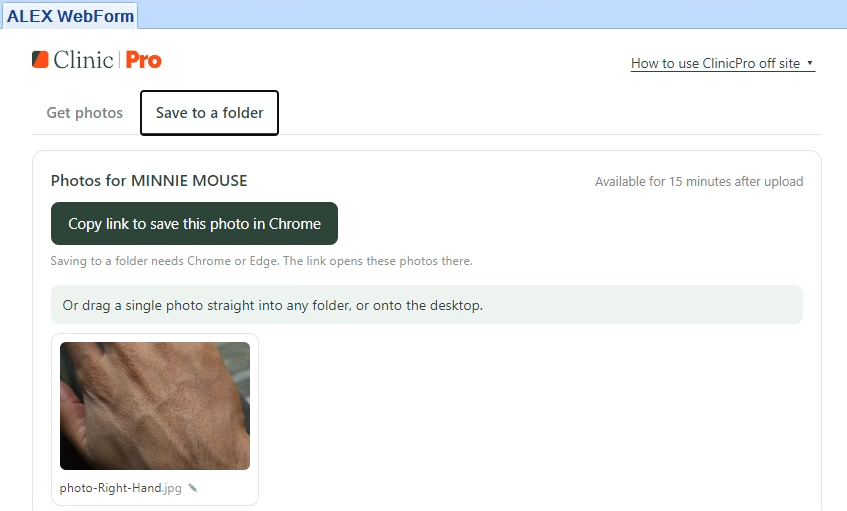
The Save to a folder tab shows a number. Click it.
- 3
Drag one photo into any folder, or click Copy link to save this photo in Chrome.
- 4
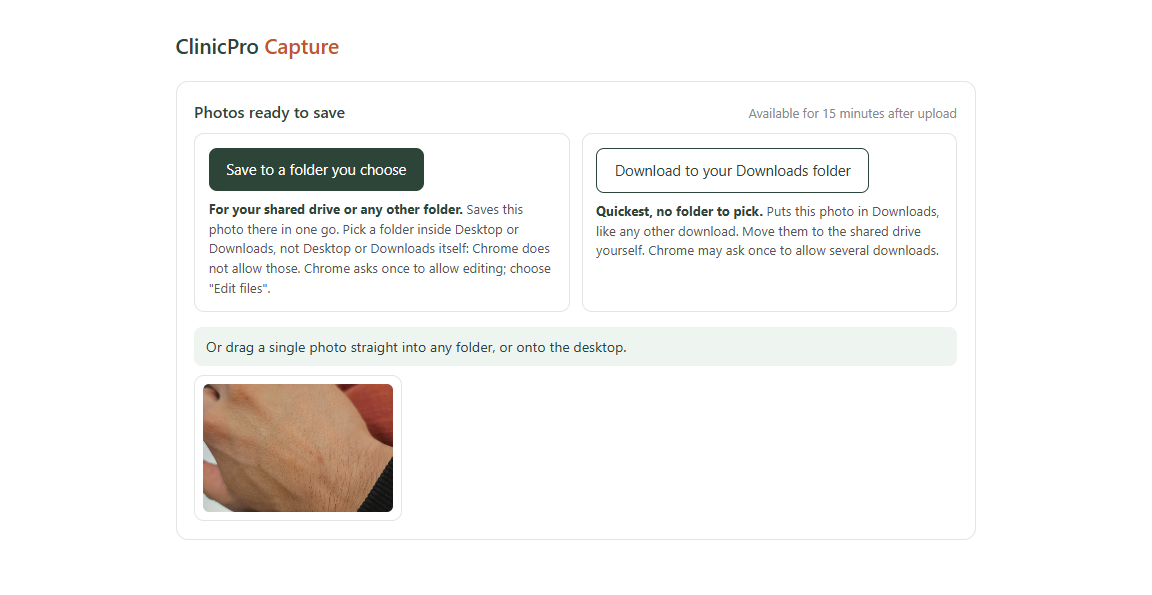
In Chrome, choose Save to a folder you choose, or Download.
Tip · 30 seconds, once
Put ClinicPro one click away
Pin ClinicPro to Evolution's toolbar, so you skip ALEX Apps every time.
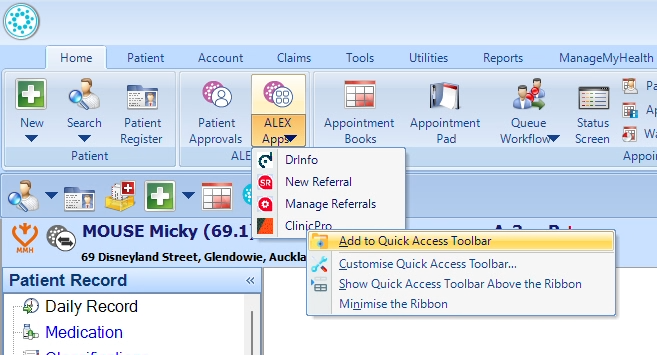
- 1Open ALEX Apps, right-click ClinicPro, choose Add to Quick Access Toolbar.
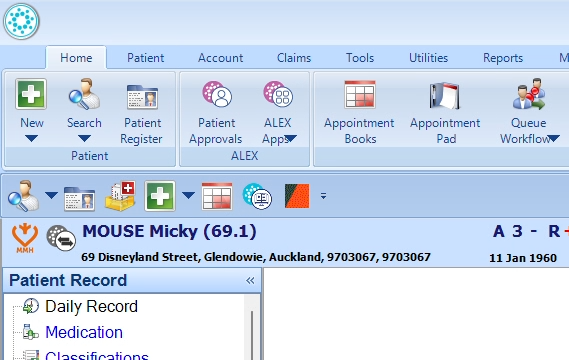
- 2The orange ClinicPro icon now sits in the toolbar. One click opens it.
Help
Something not right?
Nothing you do in ClinicPro can damage a patient record, so it is always safe to try again.
I can't see ClinicPro under ALEX Apps
Your staff role may not have ALEX Apps ticked. Ask your practice manager to check your role.
The QR code won't scan
Try Google Lens, and make sure the ClinicPro window isn't partly hidden. Codes expire, so close ClinicPro and open it again.
The patient says the email never arrived
Check the email address in their record, ask them to look in junk, then send a fresh link.
I can't see the envelope
The envelope appears once your email import is set up and switched on. Check the cog, My email import.
My email can't be linked
Use your practice email address. If it still won't link, ask your practice manager to add your practice's email domain.